2.2 KiB
Raspberry Pi Initial Setup
This repository is about the latest procedure for configuring Raspberry Pi boards in 2026. The reported procedure can be used on any Raspberry Pi board.
The procedure is about flashing the OS image, make ssh connection, both Wi-Fi and USB (Gadget-Mode), and finally upgrading the OS packages.
Flashing the OS image
Note: This guide is recommended only for the latest OS image or newer; the Trixi image is used in this guide.
First you need to download the file create_local_json.py; it is recommended to download the file as a repository to organize your data. Then, open a terminal and change the path to the repository or file location:
cd /path/to/the/file
now, the file should be visible using listing commands -like ls command-.
The file must be have executable permission, therefore run:
chmod +x ./create_local_json.py
Now, run the command with the following flags to search online OS images and enable the Gadget mode -USB OTG-:
./create_local_json.py --online --capabilities usb_otg --device-capabilities usb_otg
The shell will give an output similar to:
Wrote 184 images to os_list_local.rpi-imager-manifest
Now, you have a new RPi-imager file that will allow us to set up the gadget mode.
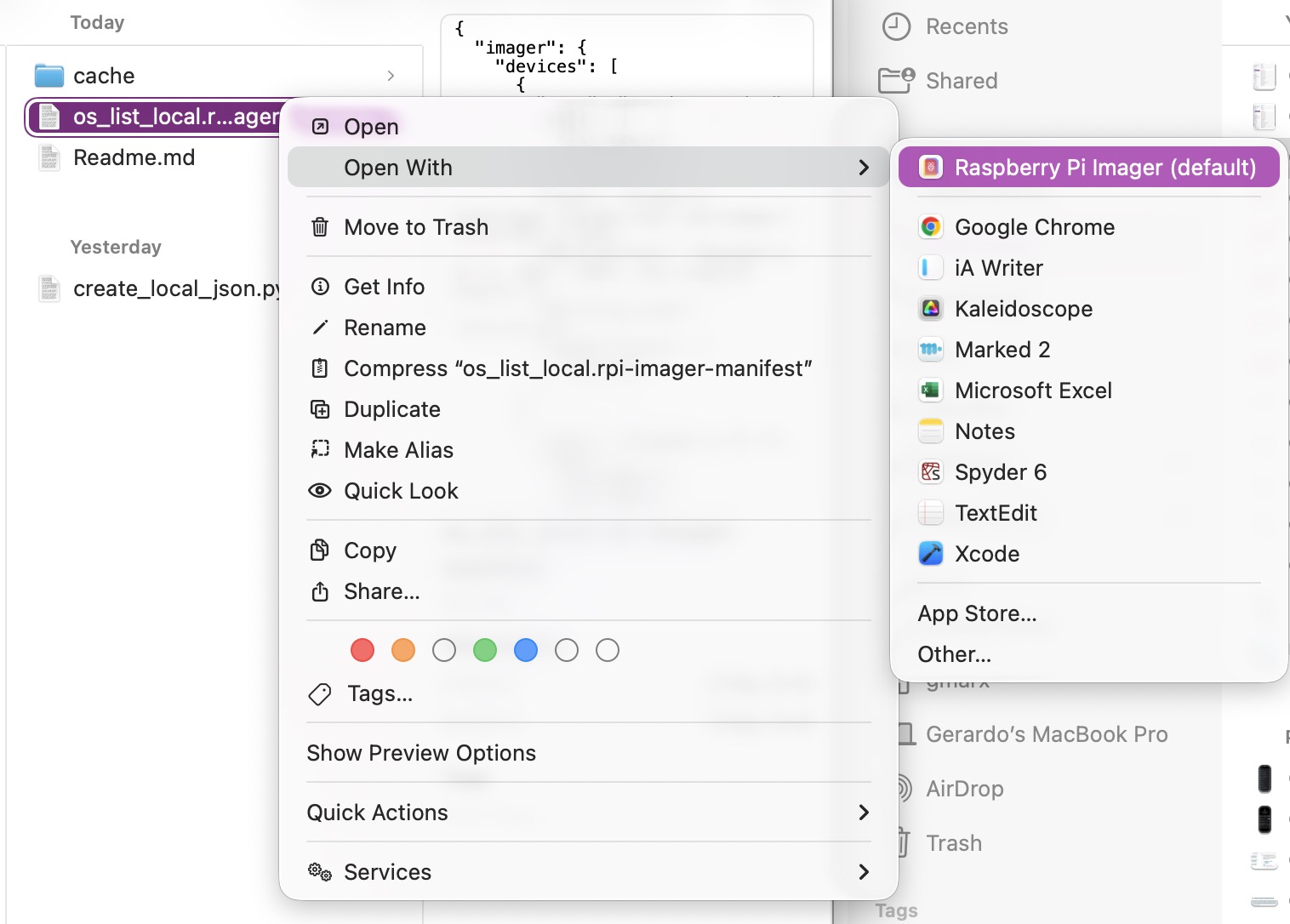
Note: you must double-click to open Raspberry Pi Imager App or right-click open with Raspberry Pi Imager; the recommended version is v2.0.7 or newer.
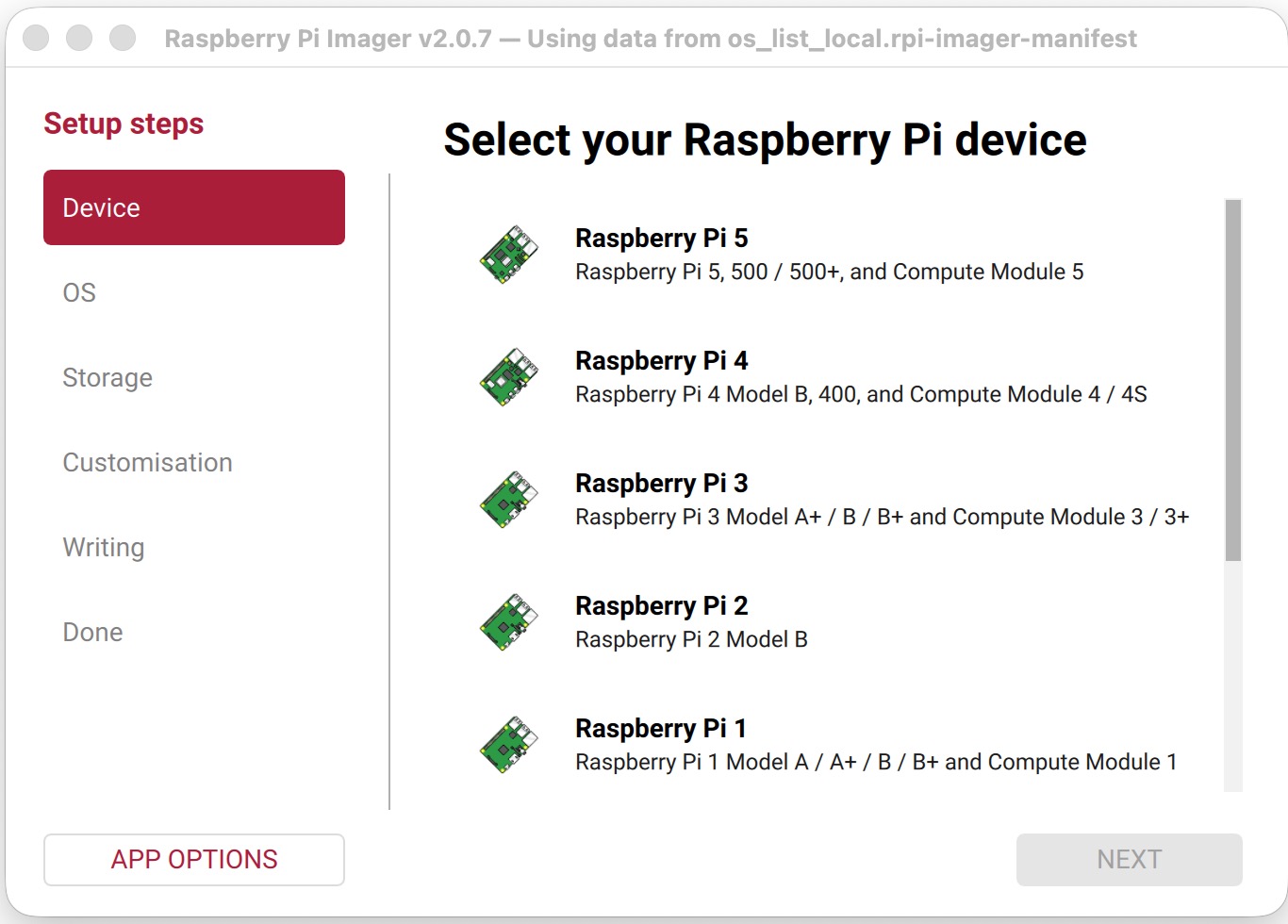
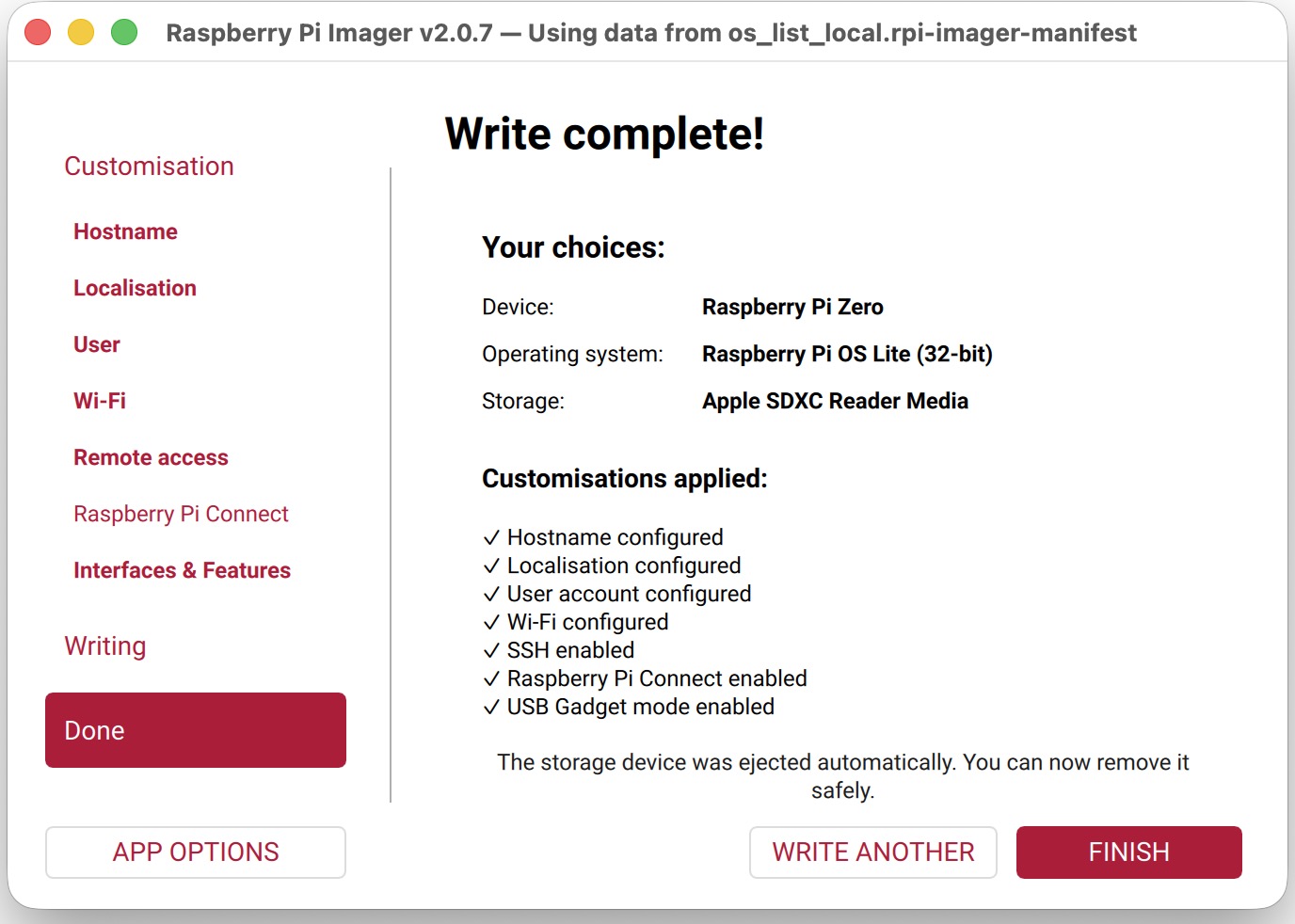
Now, you can select your device, the OS type -desktop or lite-, and make the image customization —user, Wi-Fi, remote access (ssh), Pi Connect, and gadget mode—; particularly, if you want to use Gadget mode, you must turn on remote access and gadget mode.
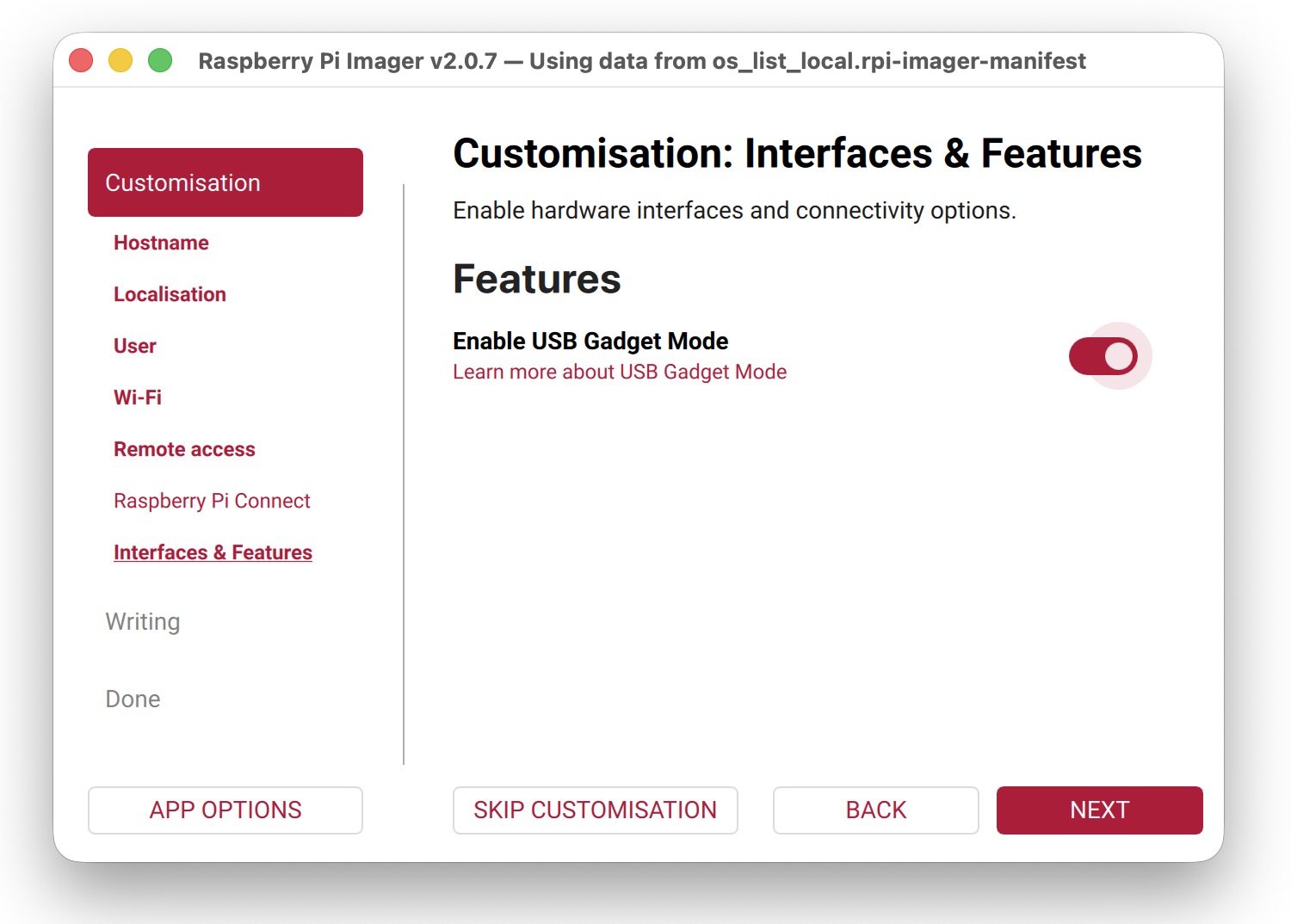
Finally, you must write the image on the micro-SD and get a customization like this:
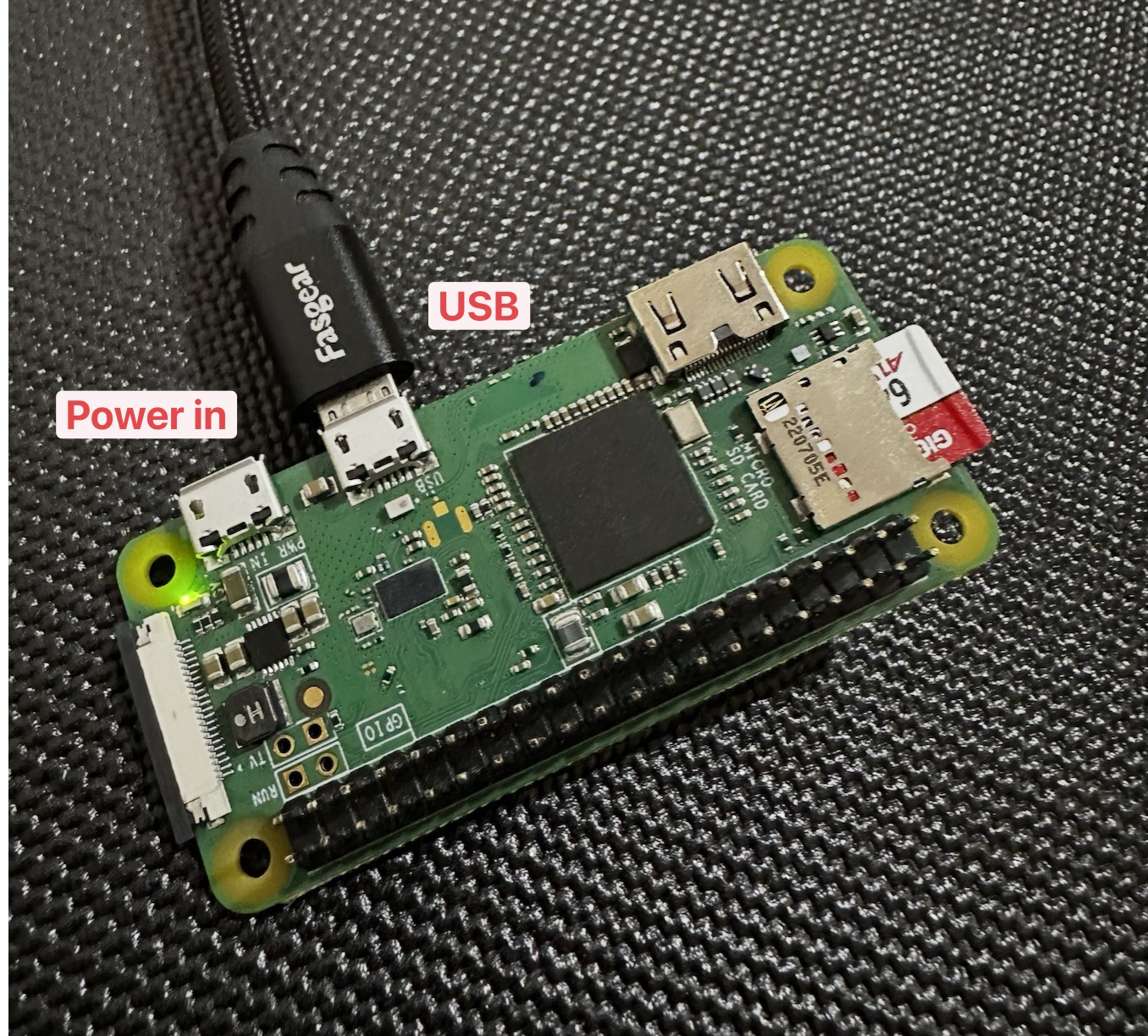
After RPi-Imager has finished, insert the micro-SD card into your device and connect it with a USB to micro-USB cable using the USB port; the other port must be used for only supply mode: