5.7 KiB
Raspberry Pi 4 Temperature & Humidity Monitoring System (HTU21D)
Project Overview
The Temperature-Humidity-Sensor is the first module in a series of sensors for GNU/Linux intended for the construction of weather microstations that will be responsible for measuring air quality, which allows the collection, transmission on IoT networks and efficient analysis of data, which will be stored in a SQLite database within a main server, with an interactive front-end that will provide a clear and detailed visualization of the data to identify patterns and trends for decision-making.
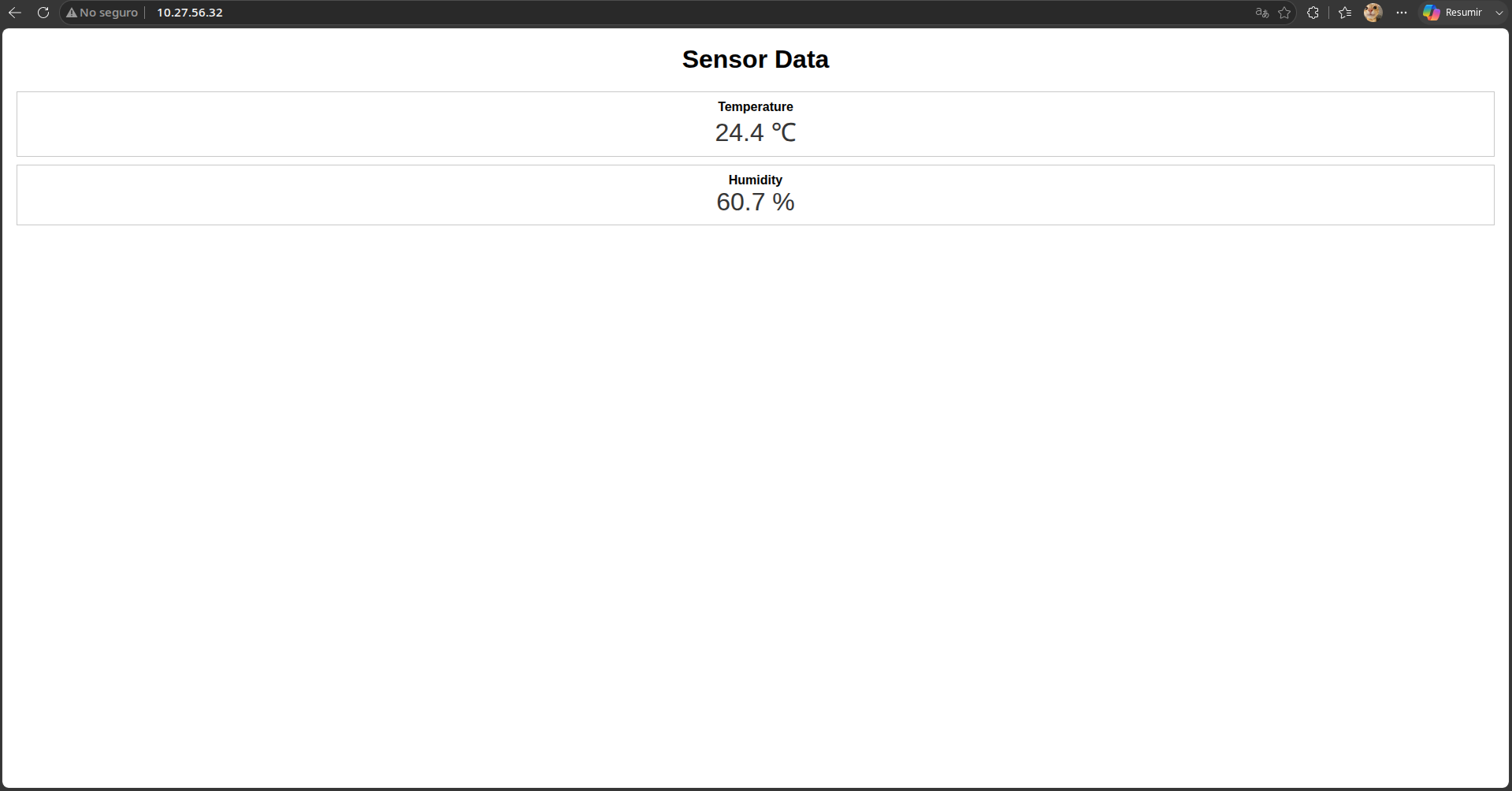
This module monitors temperature and humidity in real time using a Raspberry Pi 4 and an HTU21D sensor. The sensor reads the environmental data, sends it via I2C, processes it with a C program, and displays the results on a web dashboard using Nginx.
Objective
The objective is to learn about the development of drivers to establish communication between a sensor (hardware) responsible for collecting data and a set of programs (software) that process this data, design a target compatible with a Raspberry Pi to create weather microstations responsible for monitoring air quality, and learn to design and implement electronic circuits.
In addition to the objective of completing the Delfin program stay and obtaining new skills and knowledge to further develop my professional career.
System Architecture
The module is designed as a simple data channel where we connect the sensor HTU21D to a web interface for real-time data visualization. As follows:
HTU21D Sensor → I2C → C Program → JSON File → Nginx → Web Browser
The sensor collects temperature and humidity data, sends it via the I2C Protocol to a Raspberry Pi 4, which reads and converts it into temperature and humidity values using a C program,then stores them in a JSON file. Nginx serves this file along with the web interface (HTML), where a JavaScript script fetches the data and updates the displayed values in real time.
Materials
Hardware
- Raspberry Pi 4
- HTU21D sensor
- Jumper wires (female-to-female)
- MicroSD card with Raspberry Pi OS
- Power supply
Software
- Raspberry Pi OS / Debian
- GCC compiler
- i2c-tools
- libi2c-dev
- Nginx
- Git
Hardware Connections
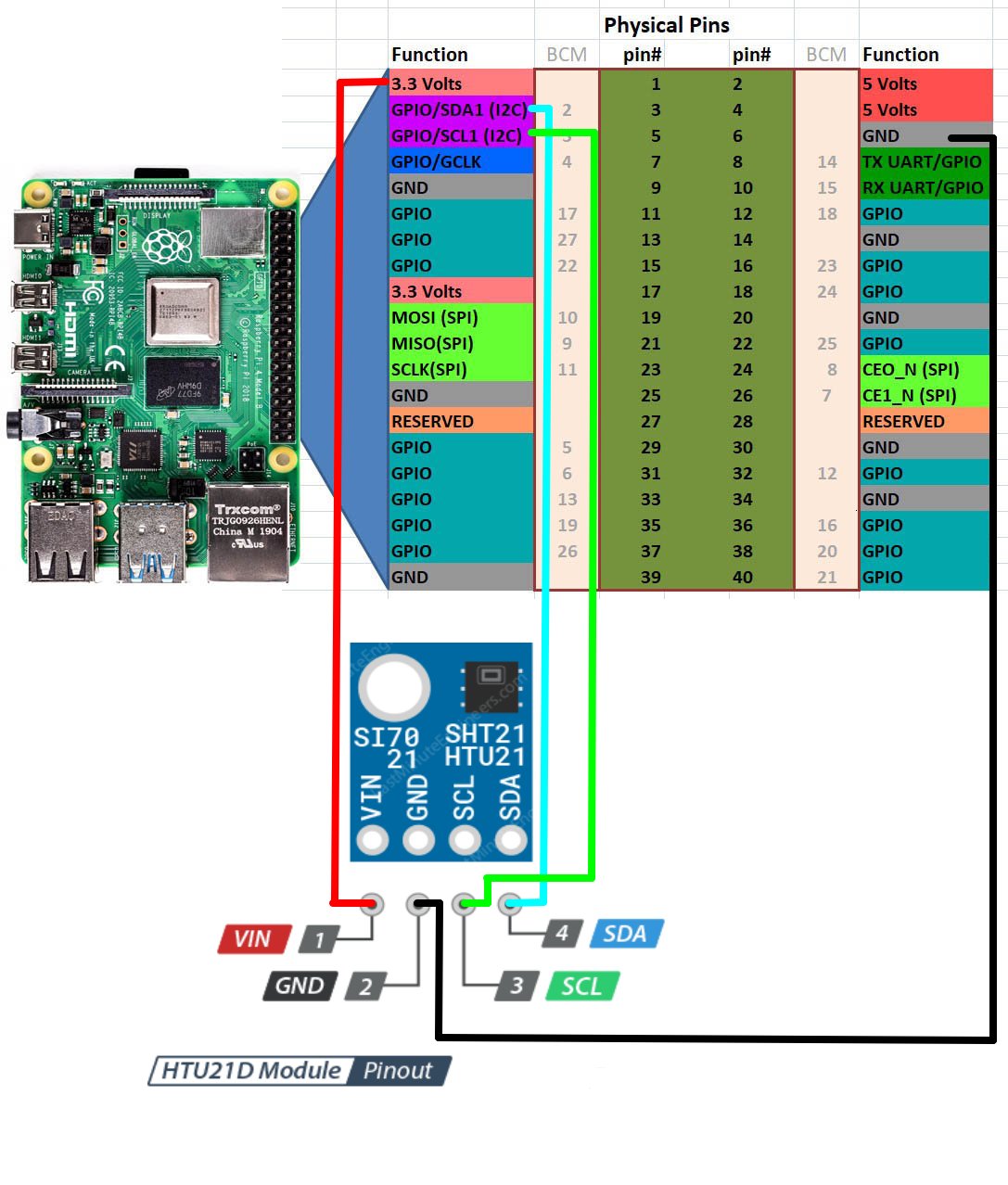
Pin Reference Images
Wiring Table
| HTU21D | Raspberry Pi 4 |
|---|---|
| VCC | 3.3V |
| GND | GND |
| SDA | GPIO2 (SDA) |
| SCL | GPIO3 (SCL) |
Deployment Guide
1. Install Dependencies
sudo apt update
# Updates package list

sudo apt install gcc i2c-tools libi2c-dev nginx git
# Installs compiler, I2C tools, web server, and Git
2. Clone the Repository
git clone https://gitea.itmorelia.com/Verano-Delfin-2026/Temperature-Humidity-Sensor.git
# Downloads the project from the server

cd Temperature-Humidity-Sensor
# Enters the project folder
3. Enable I2C
sudo raspi-config
# Opens Raspberry Pi configuration menu
Go to:
Interfacing Options → I2C → Enable
sudo reboot
# Restarts system to apply changes
4. Verify Sensor
i2cdetect -y 1
# Scans I2C bus for connected devices
Expected:
Warning: Can't use SMBus Quick Write command, will skip some addresses
     0  1  2  3  4  5  6  7  8  9  a  b  c  d  e  f
00:
10:
20:
30: -- -- -- -- -- -- -- --
40: 40 -- -- -- -- -- -- -- -- -- -- -- -- -- -- --
50: -- -- -- -- -- -- -- -- -- -- -- -- -- -- -- --
60:
70:
This output indicates that the sensor is connected at address 0x40.
If the device is not detected and the output looks like this:
Warning: Can't use SMBus Quick Write command, will skip some addresses

     0  1  2  3  4  5  6  7  8  9  a  b  c  d  e  f
00:
10:
20:
30: -- -- -- -- -- -- -- --
40: -- -- -- -- -- -- -- -- -- -- -- -- -- -- -- --
50: -- -- -- -- -- -- -- -- -- -- -- -- -- -- -- --
60:
70:
The sensor may still be connected. Some I2C devices do not respond to SMBus probing commands used by i2cdetect.
In this case, you can try to directly read from the device address.
To read the temperature, send the measurement command (0xE3 for hold mode or 0xF3 for no hold mode) and then read two bytes of data:
sudo i2cget -y 1 0x40 0xE3 w
If you receive a hexadecimal value (e.g., 0x3871), the sensor is properly connected and working.
5. Compile the Sensor Program
cd sensors/HTU21D
# Move to sensor source code

gcc main.c htu21d.c -o HTU21D -li2c
# Compiles the program and links I2C library
6. Deploy Web Files
sudo cp -r ~/Temperature-Humidity-Sensor/* /var/www/html/
# Copies project files to Nginx directory
sudo mkdir -p /var/www/html/data
# Creates folder for JSON output
7. Set Permissions
sudo chmod +x /var/www/html/sensors/HTU21D/HTU21D
# Allows execution of sensor program

sudo chown -R www-data:www-data /var/www/html
# Gives Nginx access to files
8. Run Sensor Loop
cd /var/www/html
# Go to web directory

while true; do ./sensors/HTU21D/HTU21D > data/HTU21D.json; sleep 5; done
# Continuously updates JSON every 5 seconds
9. Start Nginx
sudo systemctl start nginx
# Starts web server

sudo systemctl enable nginx
# Enables auto-start on boot

sudo systemctl status nginx
# Verifies server is running
10. Get Raspberry Pi IP
hostname -I
# Displays local IP address
Example:
192.168.1.100
11. Access from Another Computer
Open a browser and go to:
http://192.168.1.100
12. Result